> ## Documentation Index
> Fetch the complete documentation index at: https://docs.cccambox.com/llms.txt
> Use this file to discover all available pages before exploring further.
# API Keys
> Learn how to create, use, store, and rotate API keys for the CCCAMBOX TV Reseller API.
The CCCAMBOX TV Reseller API uses API keys to authenticate every request. You can create and manage your keys from the [dashboard](https://cccambox.com/dashboard).
Your API key identifies your reseller account, so every request made with that key is treated as a request from your account. Keep it private and only use it in trusted server-side environments.
API keys are sensitive credentials. Do not expose them in public GitHub
repositories, frontend code, mobile applications, browser storage, or shared
screenshots. Anyone with your key can send authenticated requests on behalf of
your account.
## What API keys are used for
API keys are required for all authenticated endpoints. You will use them to:
* Retrieve account and overview information
* Create and manage lines
* Access bouquet and package-related endpoints
* Perform reseller actions from your own backend or internal tools
All requests must be sent over HTTPS and must include your API key in the
`x-api-key` header.
## Create an API key
Use the following steps to create a new API key from the dashboard:
Open your account settings in the dashboard.
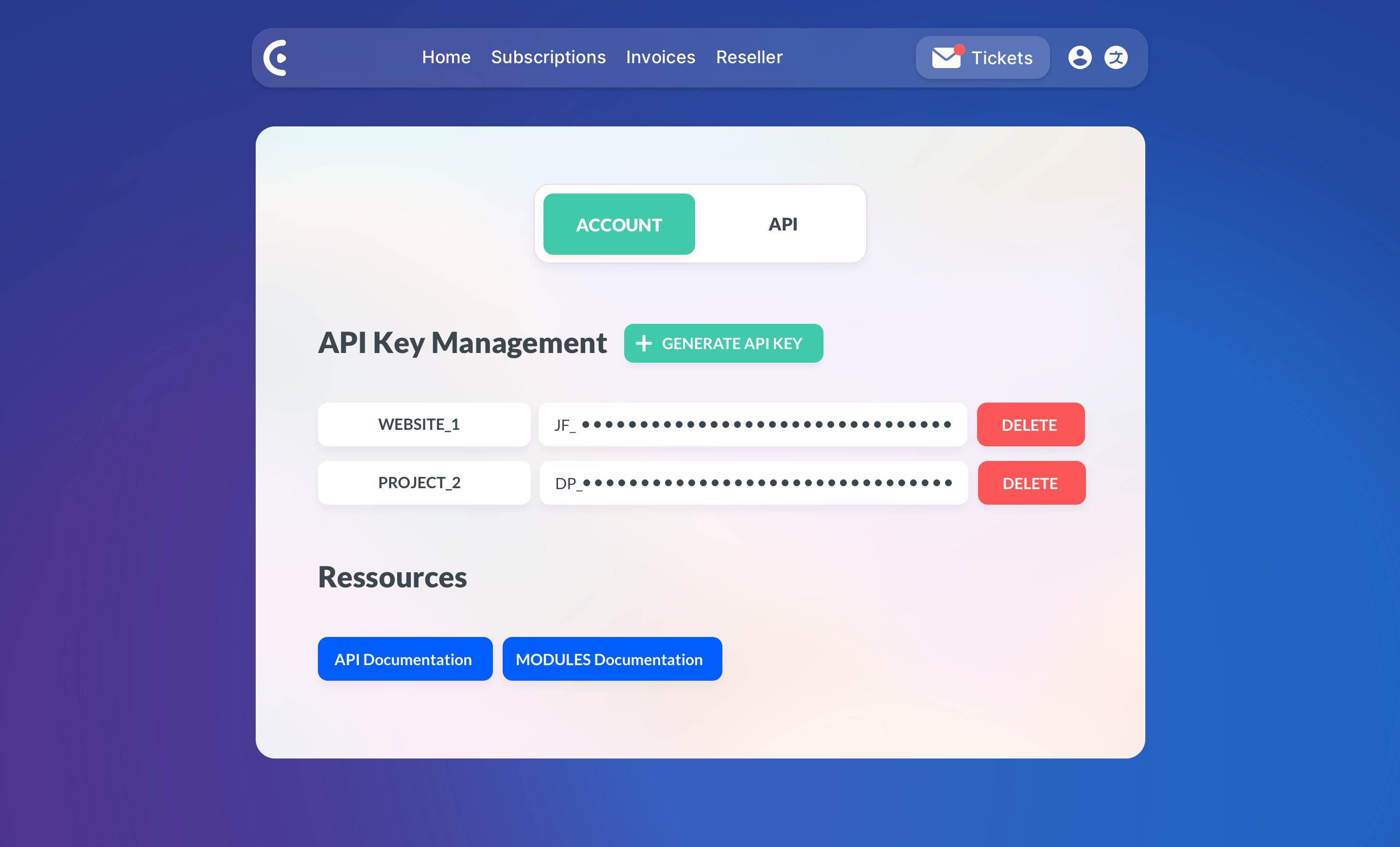 Click the `GENERATE API KEY` button.
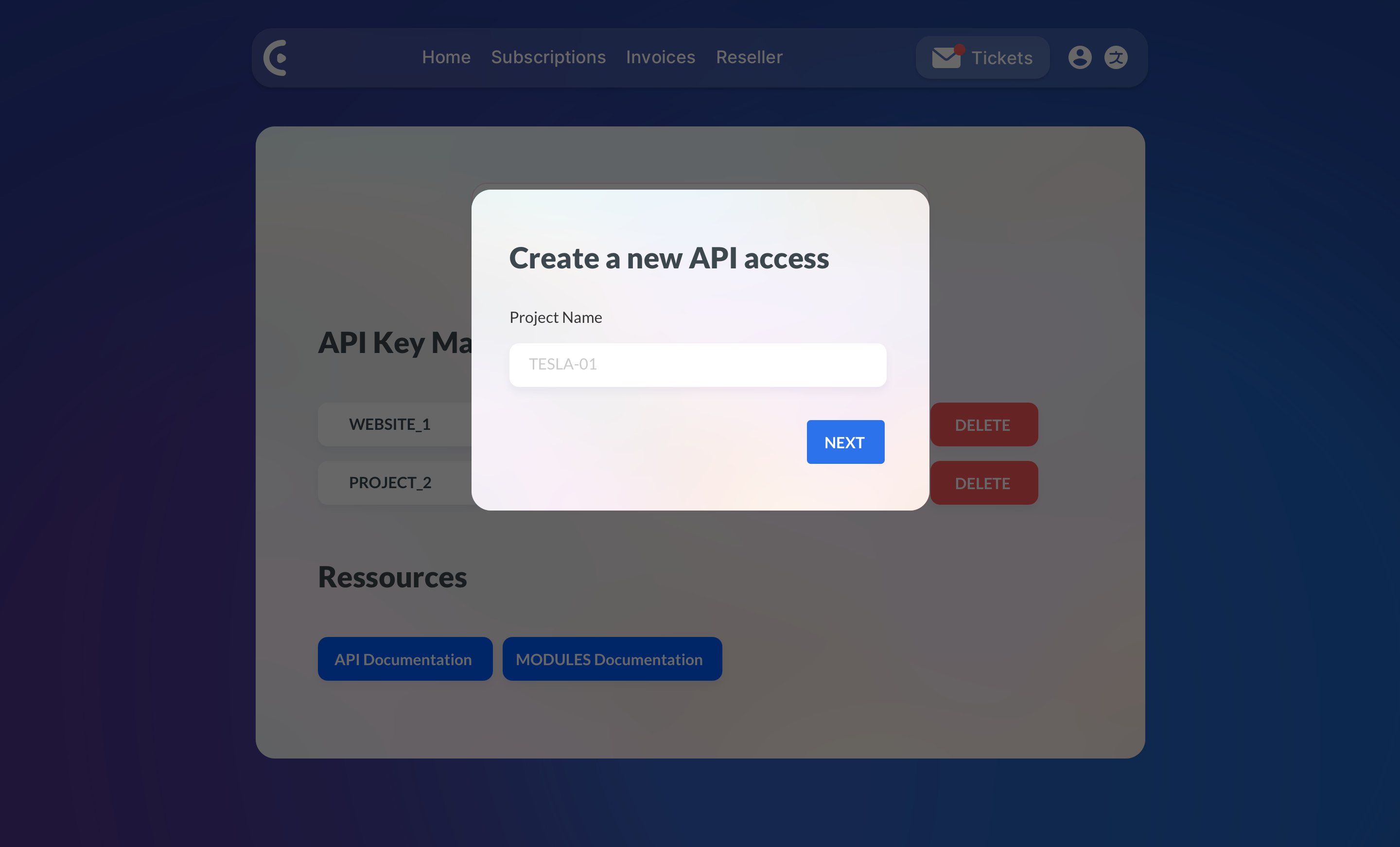 Enter a clear label, such as `production-api`, `staging`, or
`internal-tools`, then submit the form.
Enter a clear label, such as `production-api`, `staging`, or
`internal-tools`, then submit the form.
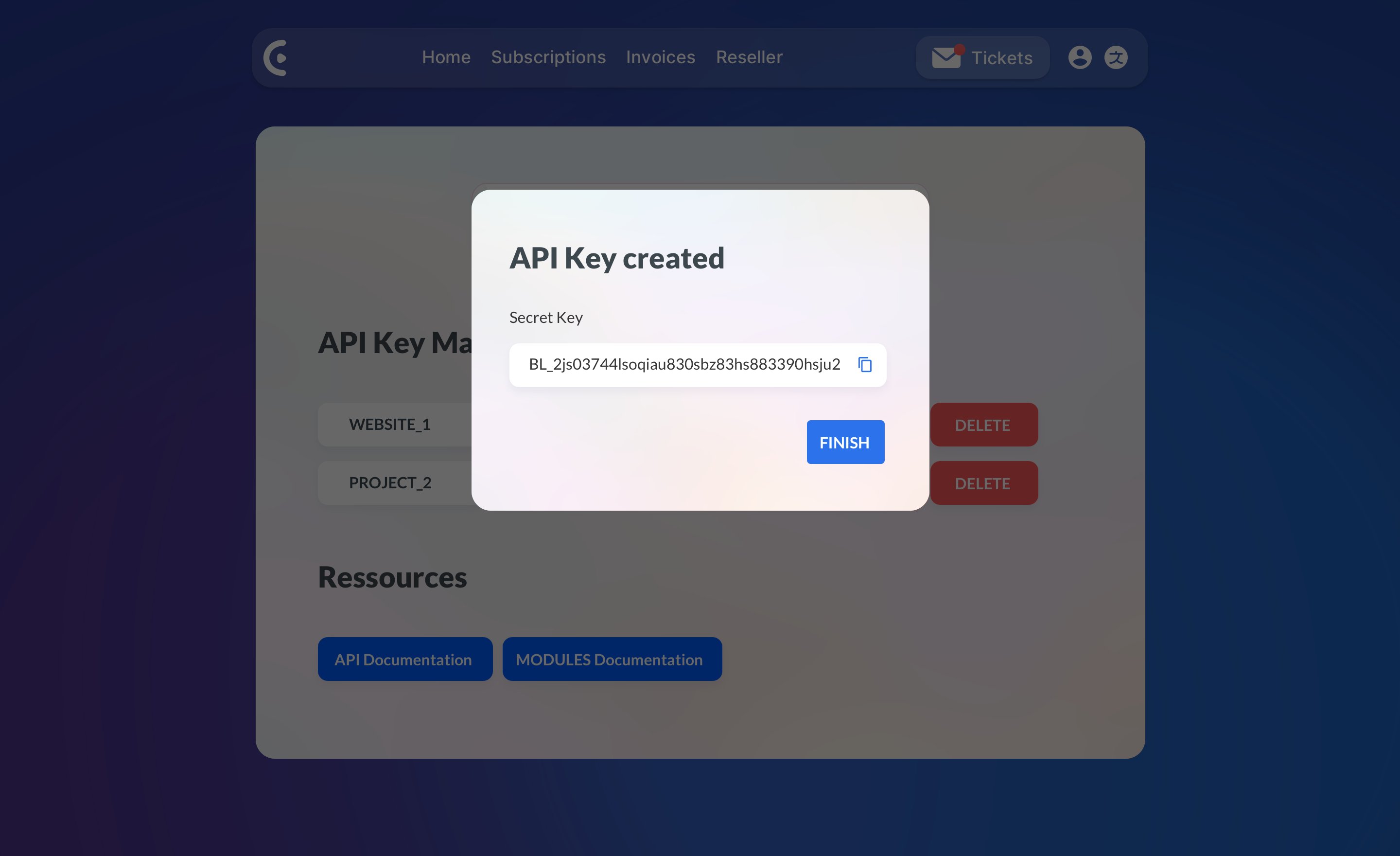 When the API key is generated, **it is shown only once**. Copy it
immediately and store it in a safe place such as a password manager,
encrypted secrets store, or secured environment variable manager.
Use labels that help you identify where a key is being used. This makes
future rotation and incident response much easier.
## Use your API key in requests
Include your API key in the `x-api-key` header on every request.
```http theme={null}
x-api-key: YOUR_API_KEY
```
Here is a basic example using cURL:
```bash theme={null}
curl --request GET \
--url https://api.reselliptv.com/v1/me \
--header 'x-api-key: YOUR_API_KEY'
```
If the key is valid, the API will authenticate the request and return the
requested resource.
You can also store the key in an environment variable and reference it in your
commands:
```bash theme={null}
export CCCAMBOX_TV_API_KEY="YOUR_API_KEY"
curl --request GET \
--url https://api.reselliptv.com/v1/me \
--header "x-api-key: $CCCAMBOX_TV_API_KEY"
```
For a broader authentication overview, see [Authentification](/doc/authentification).
## Best practices
* Store API keys in environment variables or a secrets manager
* Use separate keys for production, staging, and local development
* Give each key a descriptive label tied to a single application or service
* Rotate keys immediately if you suspect they were exposed
* Never embed keys in client-side JavaScript, public apps, or browser requests
If you are building an integration for customers or teammates, route requests
through your backend instead of calling the reseller API directly from the
client.
## Managing keys safely
You can view and manage your API keys from the dashboard. A good operational
workflow is:
Create a new key for the service that needs access.
Deploy the new key to your server or automation environment.
Confirm requests succeed with the new key.
Remove old or unused keys from active systems.
This reduces downtime during rotation and helps limit the impact of accidental
key exposure.
## Troubleshooting
If your request fails, check the following first:
* The `x-api-key` header is present
* The key value is complete and has no extra spaces
* The request is being sent over HTTPS
* You are using an active key from the correct account
An invalid or missing key will usually return a `401 Unauthorized` response. For
more details on API errors, see [Error Handling](/doc/error-handling).
When the API key is generated, **it is shown only once**. Copy it
immediately and store it in a safe place such as a password manager,
encrypted secrets store, or secured environment variable manager.
Use labels that help you identify where a key is being used. This makes
future rotation and incident response much easier.
## Use your API key in requests
Include your API key in the `x-api-key` header on every request.
```http theme={null}
x-api-key: YOUR_API_KEY
```
Here is a basic example using cURL:
```bash theme={null}
curl --request GET \
--url https://api.reselliptv.com/v1/me \
--header 'x-api-key: YOUR_API_KEY'
```
If the key is valid, the API will authenticate the request and return the
requested resource.
You can also store the key in an environment variable and reference it in your
commands:
```bash theme={null}
export CCCAMBOX_TV_API_KEY="YOUR_API_KEY"
curl --request GET \
--url https://api.reselliptv.com/v1/me \
--header "x-api-key: $CCCAMBOX_TV_API_KEY"
```
For a broader authentication overview, see [Authentification](/doc/authentification).
## Best practices
* Store API keys in environment variables or a secrets manager
* Use separate keys for production, staging, and local development
* Give each key a descriptive label tied to a single application or service
* Rotate keys immediately if you suspect they were exposed
* Never embed keys in client-side JavaScript, public apps, or browser requests
If you are building an integration for customers or teammates, route requests
through your backend instead of calling the reseller API directly from the
client.
## Managing keys safely
You can view and manage your API keys from the dashboard. A good operational
workflow is:
Create a new key for the service that needs access.
Deploy the new key to your server or automation environment.
Confirm requests succeed with the new key.
Remove old or unused keys from active systems.
This reduces downtime during rotation and helps limit the impact of accidental
key exposure.
## Troubleshooting
If your request fails, check the following first:
* The `x-api-key` header is present
* The key value is complete and has no extra spaces
* The request is being sent over HTTPS
* You are using an active key from the correct account
An invalid or missing key will usually return a `401 Unauthorized` response. For
more details on API errors, see [Error Handling](/doc/error-handling).